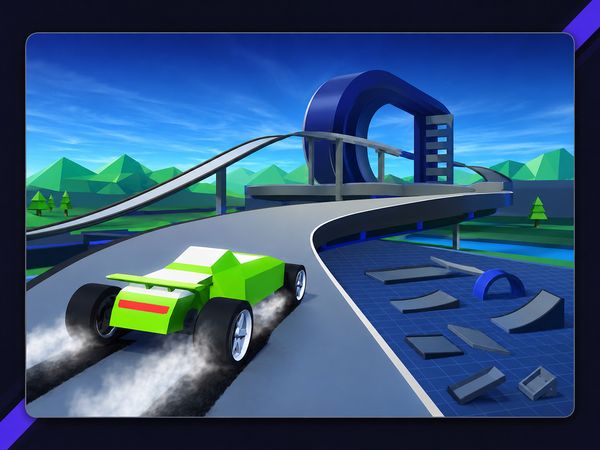
PolyTrack turns low-poly racing into a fight against the clock, where loops, jumps, and clean steering matter more than wild speed.
Each track asks for control as much as courage. A fast car still loses time when it leaves the racing line, clips a curve, or lands badly after a jump. Small corrections often beat dramatic moves.
Build your own routes, test them, then chase sharper laps through asynchronous ghost competition. You can play PolyTrack online directly in your browser and start shaping your next run here.
PolyTrack’s Core Racing Loop
Speed vs. Precision
PolyTrack looks simple because its low-poly style stays clean. The driving does not. Every section tests your ability to hold speed without losing control. Push too hard, and the car drifts wide. Brake too late, and the next jump starts from a poor angle.
Fast runs come from steady inputs. Keep the car lined up before a loop. Center it before a jump. Then use the available track width instead of fighting the course. A smooth lap usually carries more speed than a reckless one.
Time pressure gives every corner a purpose. You are not only trying to finish. You are trying to remove small delays from the entire route. One clean turn may save less than a second, but those gains add up across a full track.
Tracks That Reward Clean Lines
PolyTrack’s tracks reward players who read the road early. Look through a turn before reaching it. Aim for the exit, not just the entry. Loops and jumps become easier when the car approaches them straight.
Use the center of the track when it offers the safest setup. Move wider only when the next section needs a better angle. Clean lines protect momentum and make the following obstacle easier to handle.
Where Mistakes Cost Time
A missed landing can ruin more than one corner. It can force a recovery, break your rhythm, and damage the next setup. Checkpoint respawning helps you return to the route, but recovery still costs time. Restart when a mistake leaves the run too far behind.
Building Tracks That Actually Flow
Why the Editor Matters
The built-in level editor gives PolyTrack a second kind of challenge. Racing tests your reactions. Building tests your sense of order, spacing, and movement. You can create a route, rotate pieces, move the camera, delete weak sections, and test-drive the result.
Start with a clear route. Give the opening enough space for players to understand its direction. Then add speed changes through turns, jumps, and loops. A good track should feel demanding without becoming confusing.
Use the editor’s camera tools to inspect your work from useful angles. Left Click builds. Right Click plus mouse movement moves the camera. Middle Mouse plus mouse movement rotates it. The Mouse Wheel zooms, while Shift plus Mouse Wheel adjusts height.
For object control, C and Z adjust height. Q rotates the camera left, and E rotates it right. R and Spacebar rotate an item. X deletes an item. T starts a test drive, so you can move between construction and racing without leaving the editor.
Placing Jumps and Loops
Jumps need a clear approach and a readable landing. Leave enough room for the player to correct the car before takeoff. Loops need similar care. Their entrance should guide the car naturally, rather than forcing a sharp turn at high speed.
Rotate pieces until their direction matches the route. Adjust height when two sections almost connect. Avoid stacking difficult features without a recovery space between them. The best layouts create a rhythm: approach, challenge, landing, then another decision.
Testing Before You Share
Test every new section immediately. Drive it at speed, then inspect the landing after a mistake. Delete anything that feels unclear or unfair. Repeat until the route flows without guesswork, then share the finished track.
PolyTrack Controls and Run Recovery
Driving and Restart Keys
PolyTrack supports two driving layouts. Use WASD or the Arrow Keys to drive. Pick one set and keep your attention on the track. Familiar inputs make quick corrections easier during loops and jumps.
Restarting quickly matters during time trials. Press Enter or R to restart the track. R also rotates an item while building, so its action depends on the current part of the game. During a race, use it for a fresh attempt. During construction, use it for object rotation.
Let the car settle before steering again. A rushed correction often creates another mistake. If the run has already lost too much time, restart instead of forcing a poor recovery.
Use camera control to prepare for tricky sections. Q rotates the camera left, while E rotates it right. That view change can help you read a landing or line up a narrow approach before committing.
First-Person and Pause Options
Keep camera movement deliberate when the route becomes hard to read. Q and E rotate the camera, while Middle Mouse plus mouse movement rotates it freely. The Mouse Wheel zooms in or out. These controls help you inspect the road without changing the driving inputs.
When a run loses its rhythm, pause your decision rather than your momentum. Recenter your view, identify the next landing, and choose a cleaner line. Enter or R then gives you a quick restart when recovery no longer makes sense.
Ready for another run? Start PolyTrack here and test a cleaner line on the next track.
PolyTrack gameplay
Using Best Lap Times
Best lap times give each PolyTrack run a clear target. You can finish a track once, then return with a smaller goal: lose a little time in one turn, improve one landing, or carry more speed into the next section. That approach keeps practice focused.
Watch where the run slows down. A wide turn usually points to a poor entry. A bad jump often begins with the approach before it. Study the whole sequence instead of blaming the final mistake. Better laps come from fixing the first problem in the chain.
You race against another run’s pace without needing a live opponent beside you.
Do not chase speed everywhere. A faster entry can create a slower exit. Protect the sections that already work, then improve one weak area at a time. This method makes your best lap more repeatable.
Restarting also becomes useful here. Enter or R removes a poor attempt quickly, while checkpoint respawning helps you continue after a mistake. Use the option that preserves the most time. A strong result usually comes from several short, deliberate attempts rather than one reckless run.
Keep your attention on consistency. The ideal lap is not merely fast once. It gives you control through the same turns, loops, and jumps each time. That repeatable rhythm is what turns a lucky finish into a real improvement.
Track Codes and Community Creations
Sharing a Finished Track
Custom track sharing lets a finished PolyTrack route move beyond its creator. Build the layout, test-drive every major section, and make sure the route feels clear before sending it out. A track code gives other players a simple way to access that creation.
Share the code with a short note about the route’s character. Mention whether it focuses on jumps, loops, tight turns, or fast lines. Clear context helps players know what kind of drive they are about to try.
Importing Community Maps
Community maps add a fresh reason to open the editor and racing screen. Enter a shared track code, load the route, and study its layout before chasing time. Try the course once for its shape, then refine your line through later attempts.
Why Community Content Extends Replay Value
Official and community tracks create a wider stream of routes. Each new layout changes the timing challenge, even when the core controls stay familiar. Building and sharing also turn players into track designers, keeping PolyTrack active beyond its original set.
Official Builds, Platforms, and Release Context
Kodub’s Official Release
Kodub created PolyTrack as a low-poly racing game with track building at its center. The official build combines speed, precision, loops, and jumps with a built-in level editor. It also supports single-player racing with asynchronous ghost competition.
That mix gives the game two connected roles. You can master existing routes, or create new ones for other players to drive. Both sides depend on clear layouts and careful control.
Browser and Downloaded Versions
PolyTrack uses HTML5 and runs directly in the browser. It also appears on major hosting portals, while the documented platform list includes Browser and Android. That gives players more than one way to reach the game.
Support may differ between listings. Use the version available through the source you choose, and expect the interface or presentation to vary slightly across platforms.
What Changes
Focus on those common mechanics when moving between versions. For the clearest developer context, look to Kodub’s official release information before comparing how each platform presents PolyTrack.
Compare with Similar Games
| Game |
Why Similar |
| Drift Boss |
Player controls a car with a single action: hold to drift right and release to drift left. |
✨ Key Feature of PolyTrack
How to Play PolyTrack
Step 1: Start a racing run
Open a track and begin driving with WASD or the arrow keys.
Step 2: Keep speed through clean turns
Brake only when needed, then return to throttle quickly.
Step 3: Use restart shortcuts fast
Press R, Enter, or T when a line goes wrong.
Step 4: Edit the track
Switch to the editor, place pieces, and shape jumps or loops.
Step 5: Test the layout often
Use test driving so every section stays drivable at speed.
PolyTrack FAQs
What are the basic controls for PolyTrack?
Browser keyboard: WASD — drive; Arrow Keys — drive; Enter — restart track; R — restart track; C — adjust height; Z — adjust height; Q — rotate camera left; E — rotate camera right; R — rotate item; Spacebar — rotate item; X — delete item; T — test drive. Browser mouse: Left Click — build; Right Click + Mouse — move camera; Middle Mouse + Mouse — rotate camera; Mouse Wheel — zoom; Shift + Mouse Wheel — adjust height.
Does PolyTrack require a separate installation?
No. The browser version of PolyTrack runs on the page without a separate installation.
Who made PolyTrack?
PolyTrack was created by Kodub. Official and store listings both identify Kodub as the developer.
Conclusion
PolyTrack combines driving and hands-on track building in a focused single-player experience. Use WASD or the Arrow Keys to drive, then restart the track with Enter or R whenever you want another attempt. Adjust height with C or Z, rotate items with R or Spacebar, and remove them with X to refine your design.
Building is simple with Left Click, while camera controls let you move, rotate, and zoom around your creation. Test drive with T, then compare your performance through asynchronous ghost competition. Start building and play PolyTrack right here on this page.

No comments yet. Be the first to share your thoughts!